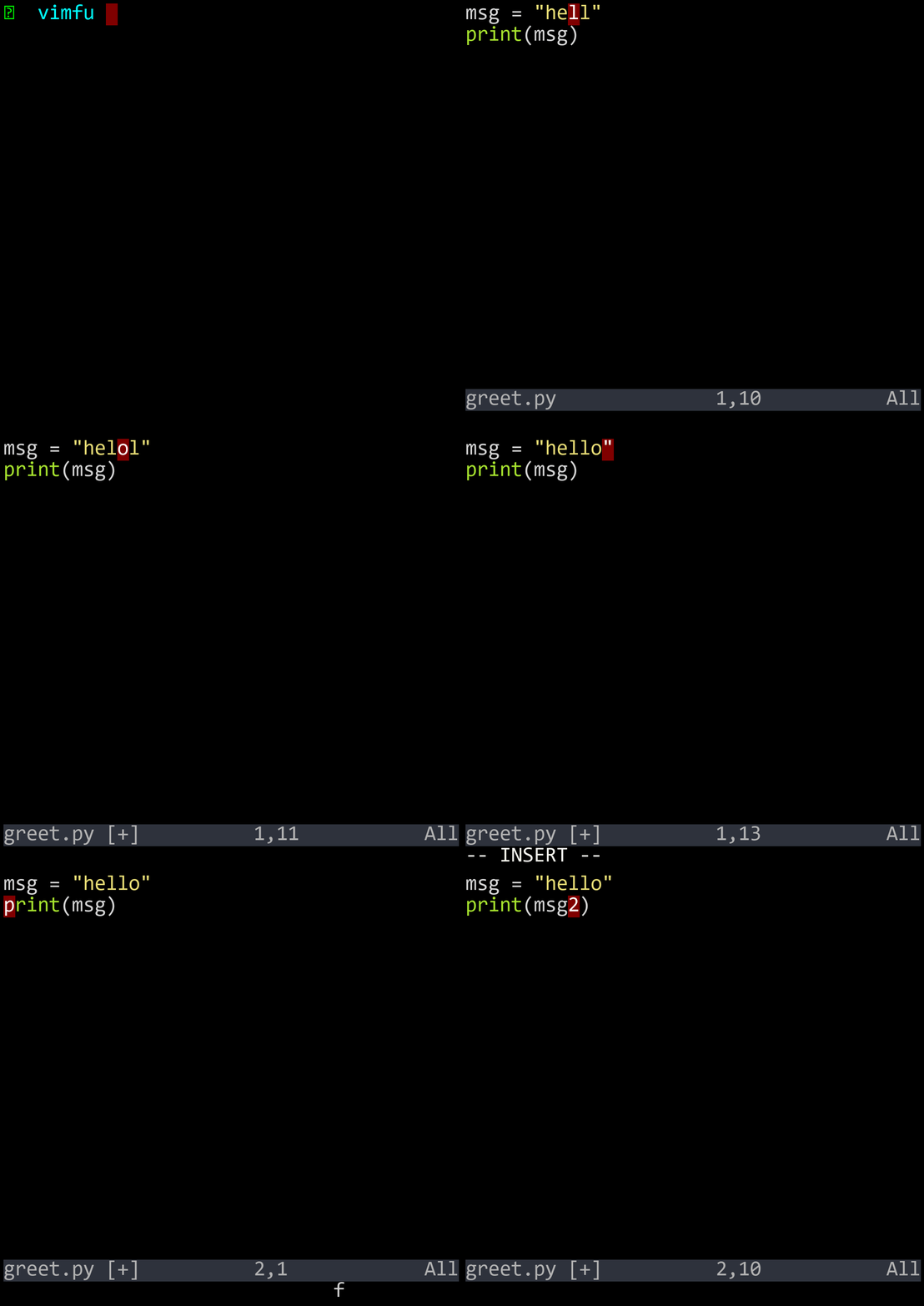
Enough to get real work done — go cold turkey after this chapter
Enough to get real work done. After this chapter, you should go cold turkey — use Vim for everything. You'll be slow at first, but that's how you build muscle memory.
You know i enters insert mode at the cursor. But Vim gives you five more entry points, each putting you exactly where you need to be:
| Key | Action | Use When |
|---|---|---|
| a | Append after the cursor | Adding to the end of a word |
| I | Insert at the start of the line | Adding a comment or prefix |
| A | Append at the end of the line | Adding a semicolon or comment |
| o | Open a new line below | Adding a new statement |
| O | Open a new line above | Adding a header or import |
Each of these saves you a motion. Instead of pressing i and then navigating to the end of the line, just press A. Instead of pressing i, then Enter to make a new line, just press o. Pick the insert command that puts you where you need to be.
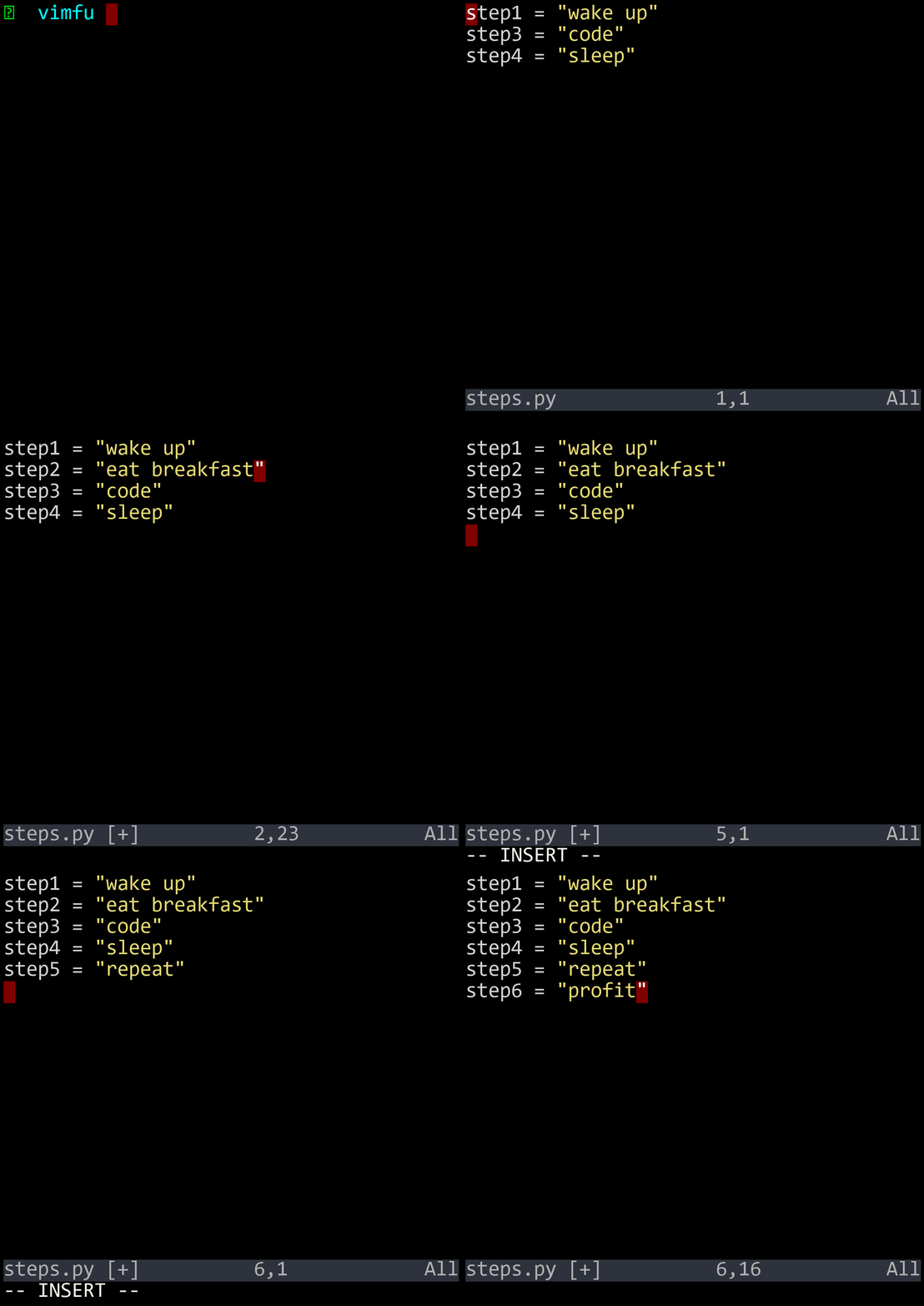
Moving character-by-character with h and l is slow. Word motions jump by words — much faster for navigating code.
| Key | Motion |
|---|---|
| w | Forward to the start of the next word |
| b | Backward to the start of the current/previous word |
| e | Forward to the end of the current/next word |
| ge | Backward to the end of the previous word |
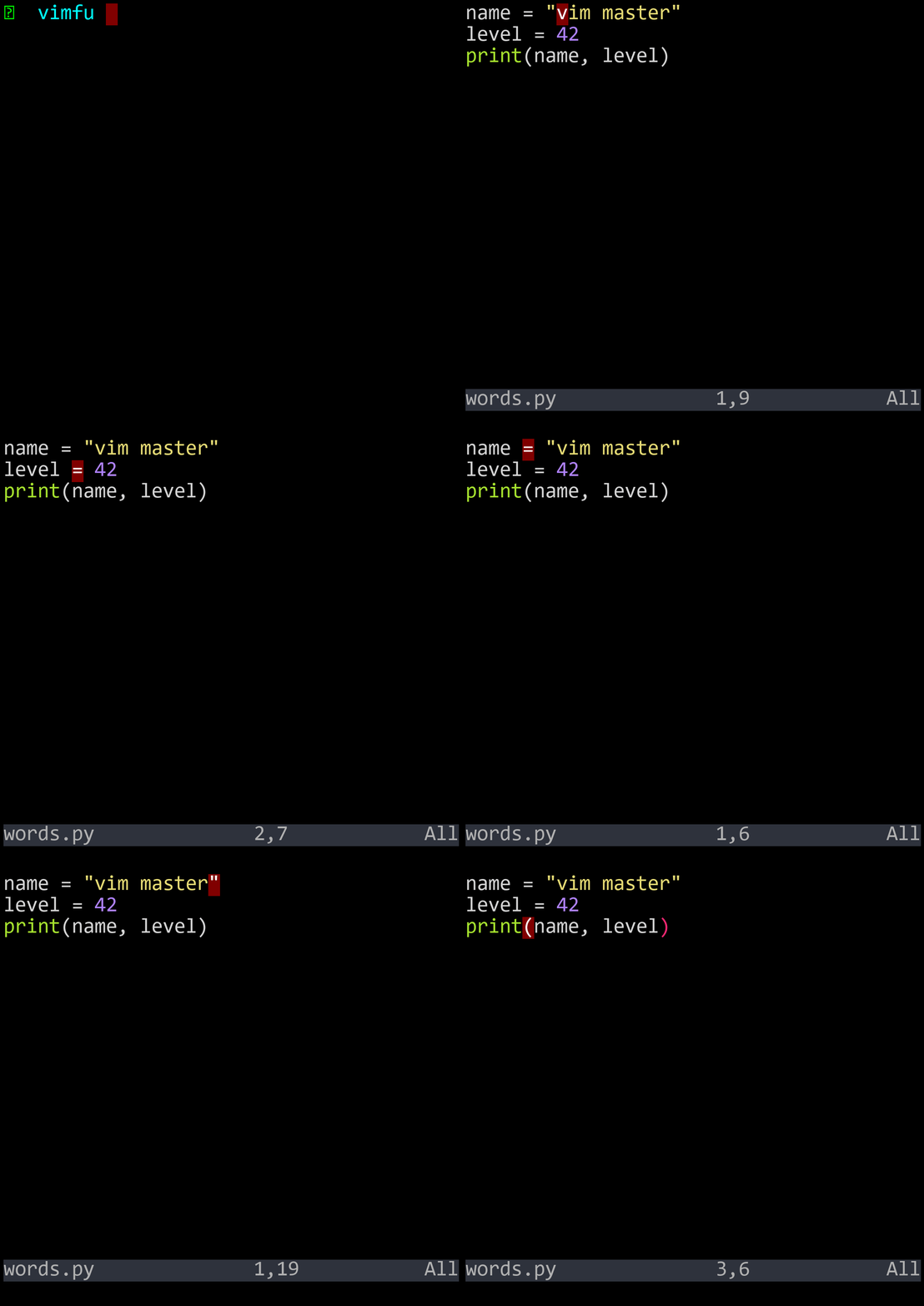
What counts as a "word"? Vim defines a word as a sequence of letters, digits, and underscores — or a sequence of other non-blank characters. So in my_var, that's one word. But in my-var, that's three words (my, -, var) because the hyphen breaks the word boundary.
These four motions will become your bread and butter. You'll use w and b constantly to navigate within lines.
Jump to specific positions on the current line:
| Key | Motion |
|---|---|
| 0 | Go to column zero (the very start) |
| ^ | Go to the first non-whitespace character |
| $ | Go to the end of the line |
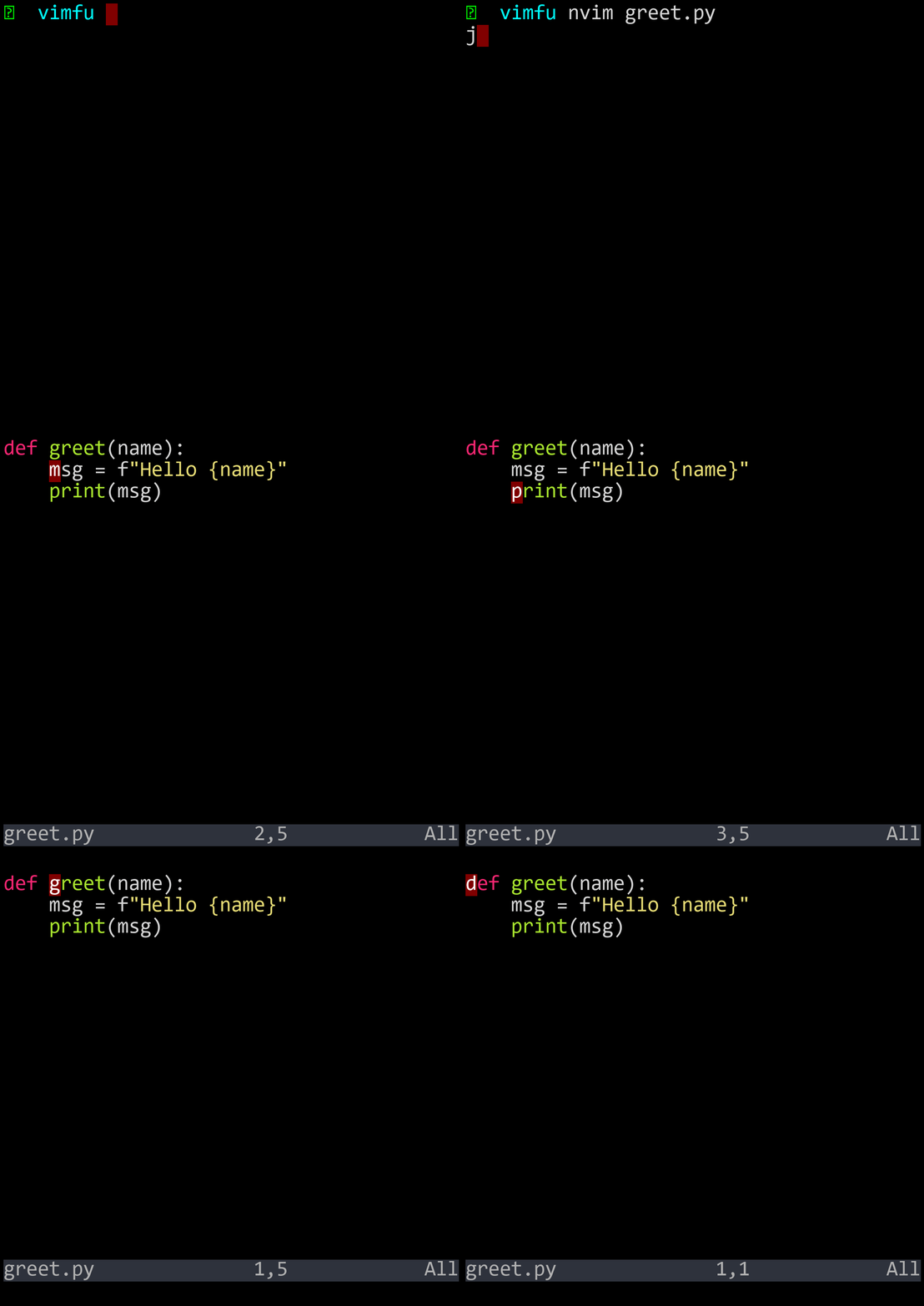
The difference between 0 and ^ matters for indented code. 0 takes you to column zero — the leftmost position. ^ takes you to the first character that isn't a space or tab. In Python or any indented language, ^ is what you usually want.
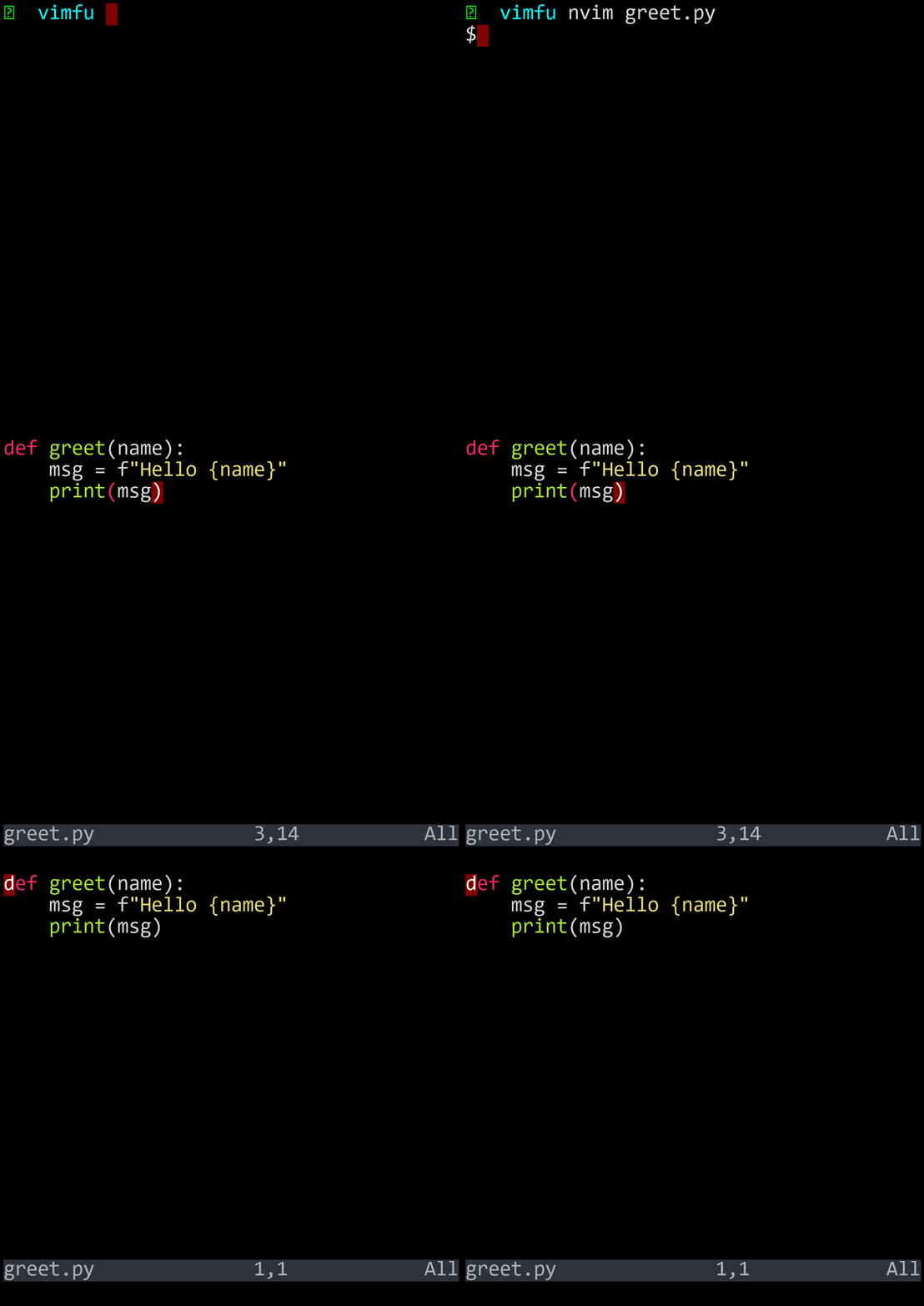
Jump anywhere in the file:
| Key | Motion |
|---|---|
| gg | Go to the first line of the file |
| G | Go to the last line of the file |
| 42G | Go to line 42 |
| :42Enter | Go to line 42 (command-line version) |
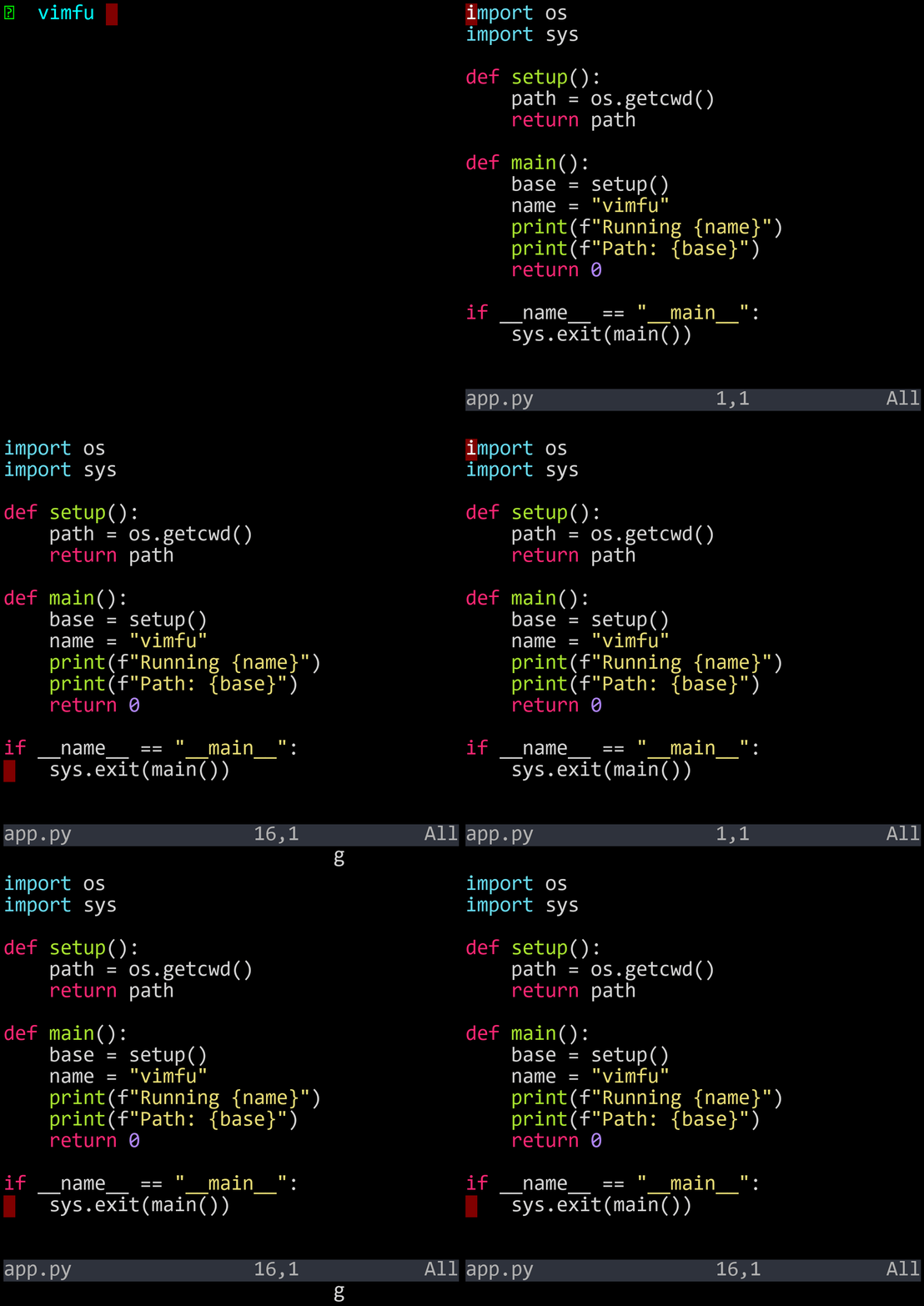
These are the motions that make scrolling with j and k feel primitive. Need to check the top of a file? gg. Need the bottom? G. Got a compiler error on line 42? 42G. Three keystrokes and you're there.
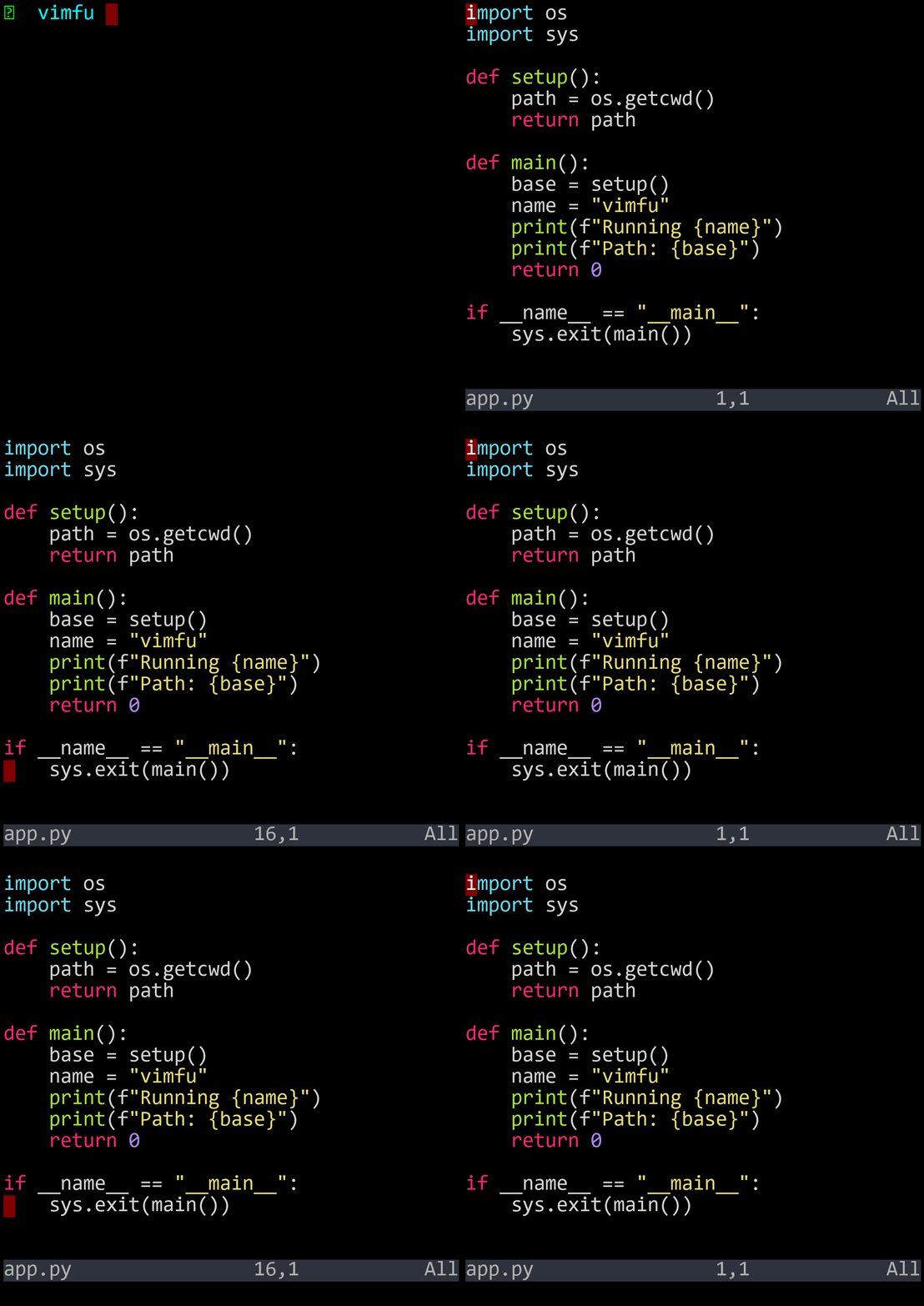
Now we meet Vim's most important concept: the operator + motion pattern. d is the delete operator. On its own, it waits for a motion to tell it what to delete:
| Command | Deletes |
|---|---|
| x | The character under the cursor |
| X | The character before the cursor (like Backspace) |
| dw | From the cursor to the start of the next word |
| d$ or D | From the cursor to the end of the line |
| dd | The entire current line |
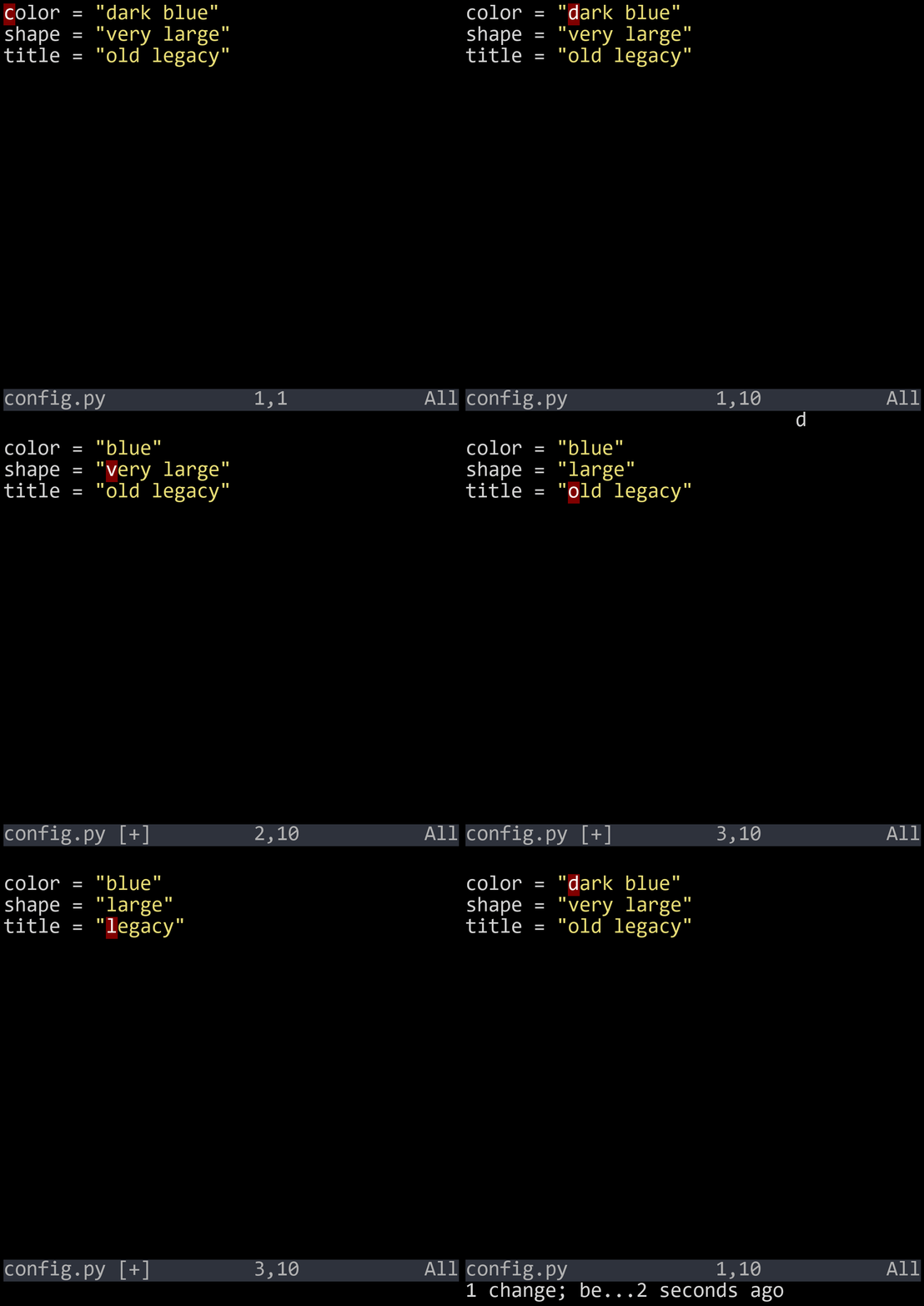
This is your first taste of Vim's composable grammar: d is the verb (delete), and the motion is the noun (what to delete). Every motion you know works with d: dj deletes two lines, dG deletes to the end of the file, dgg deletes to the top. You already know a dozen delete commands just by combining d with the motions from the last three sections.
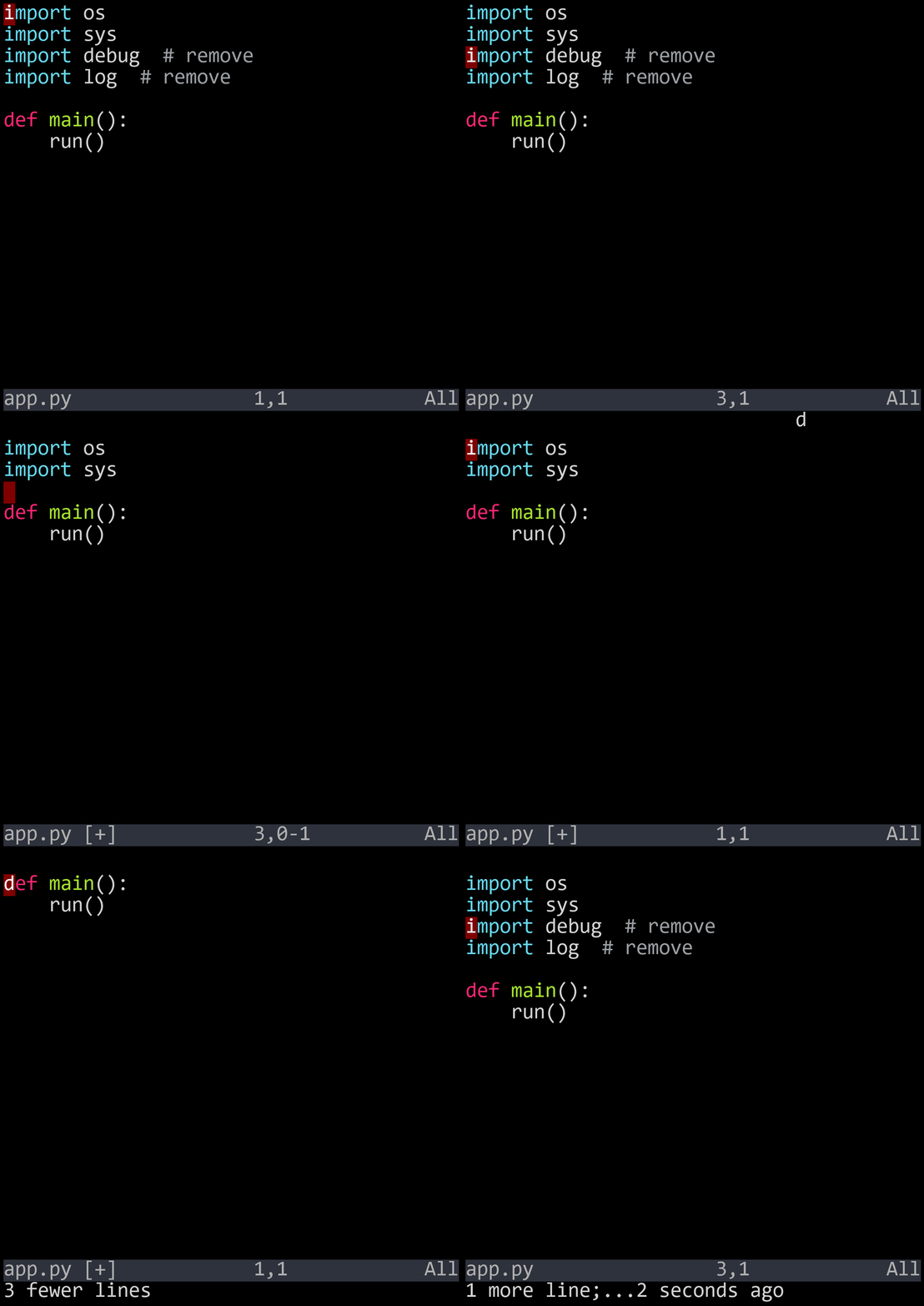
Change = delete + enter insert mode. The c operator deletes the specified text and immediately drops you into insert mode, ready to type the replacement.
| Command | Changes |
|---|---|
| cw | Change a word (delete it, start typing) |
| c$ or C | Change to end of line |
| cc or S | Change the entire line |
| s | Substitute one character (delete it, enter insert mode) |
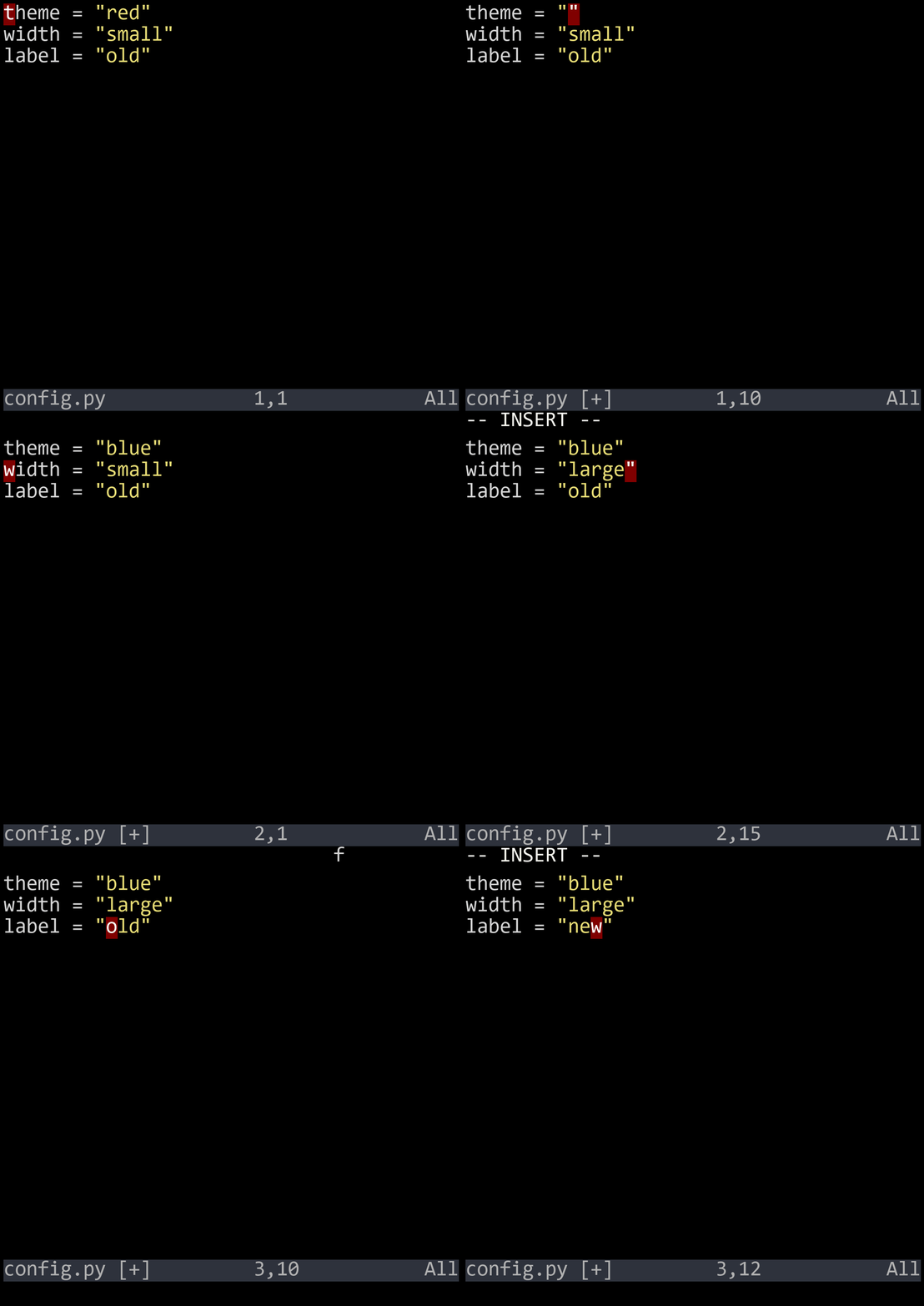
The c operator follows the same grammar as d: cw changes a word, cj changes two lines, cG changes to the end of the file. Same motions, different operator. The grammar scales.
Vim calls it "yank" and "put" instead of "copy" and "paste." The y operator yanks (copies) text, and p puts (pastes) it.
| Command | Action |
|---|---|
| yy or Y | Yank the current line |
| yw | Yank a word |
| y$ | Yank to end of line |
| p | Put after the cursor (or below for lines) |
| P | Put before the cursor (or above for lines) |
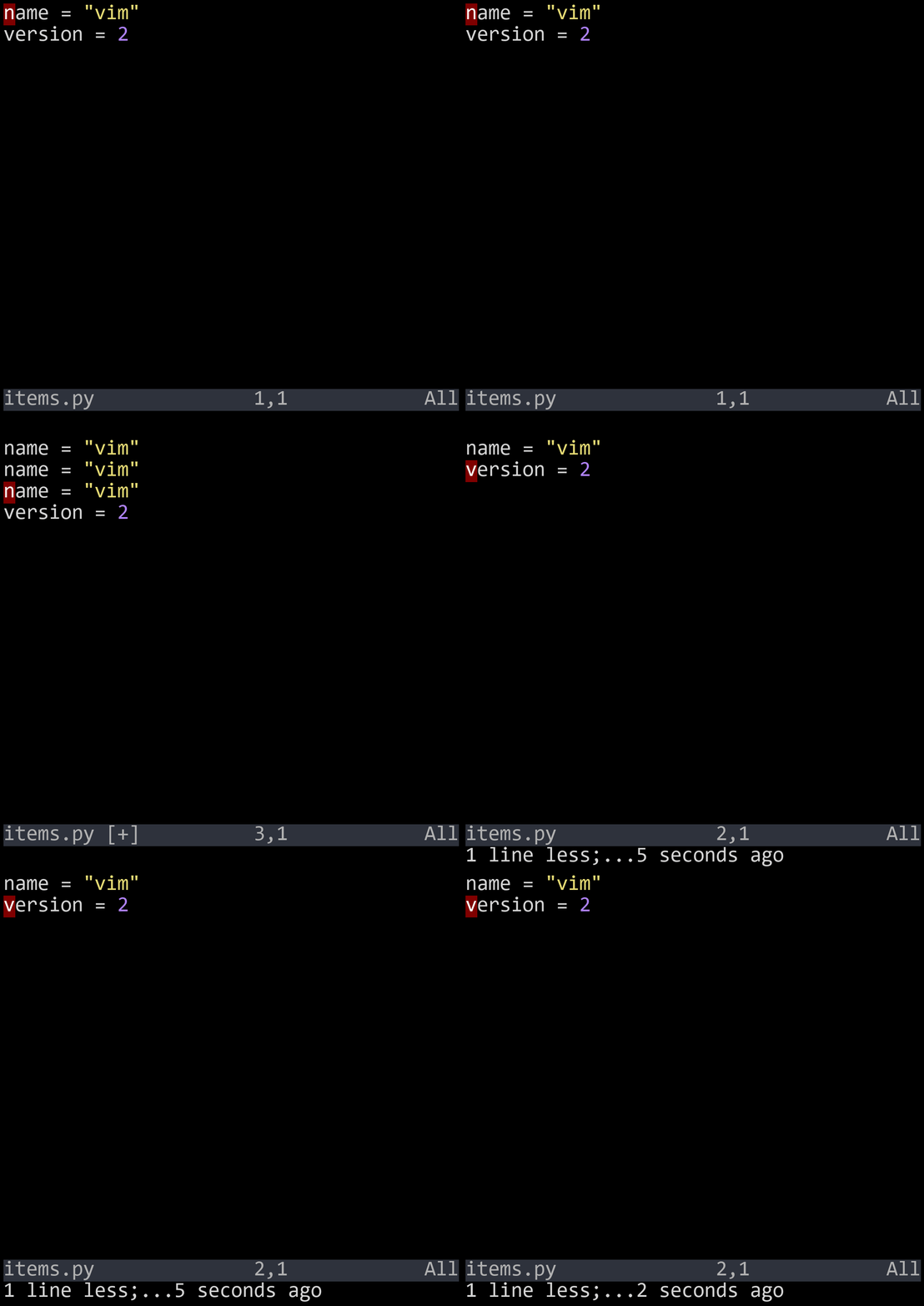
Two handy tricks with yank and put:
ddp — swap two lines. Delete a line (it's now in the paste register), then put it after the line below. Instant line swap.
xp — swap two characters. Delete a character, put it after the next one. Fixes typos like 'teh' → 'the' in two keystrokes.
Sometimes you just need to fix one character. rX replaces the character under the cursor with X — without entering insert mode. No mode switch, no Esc needed.
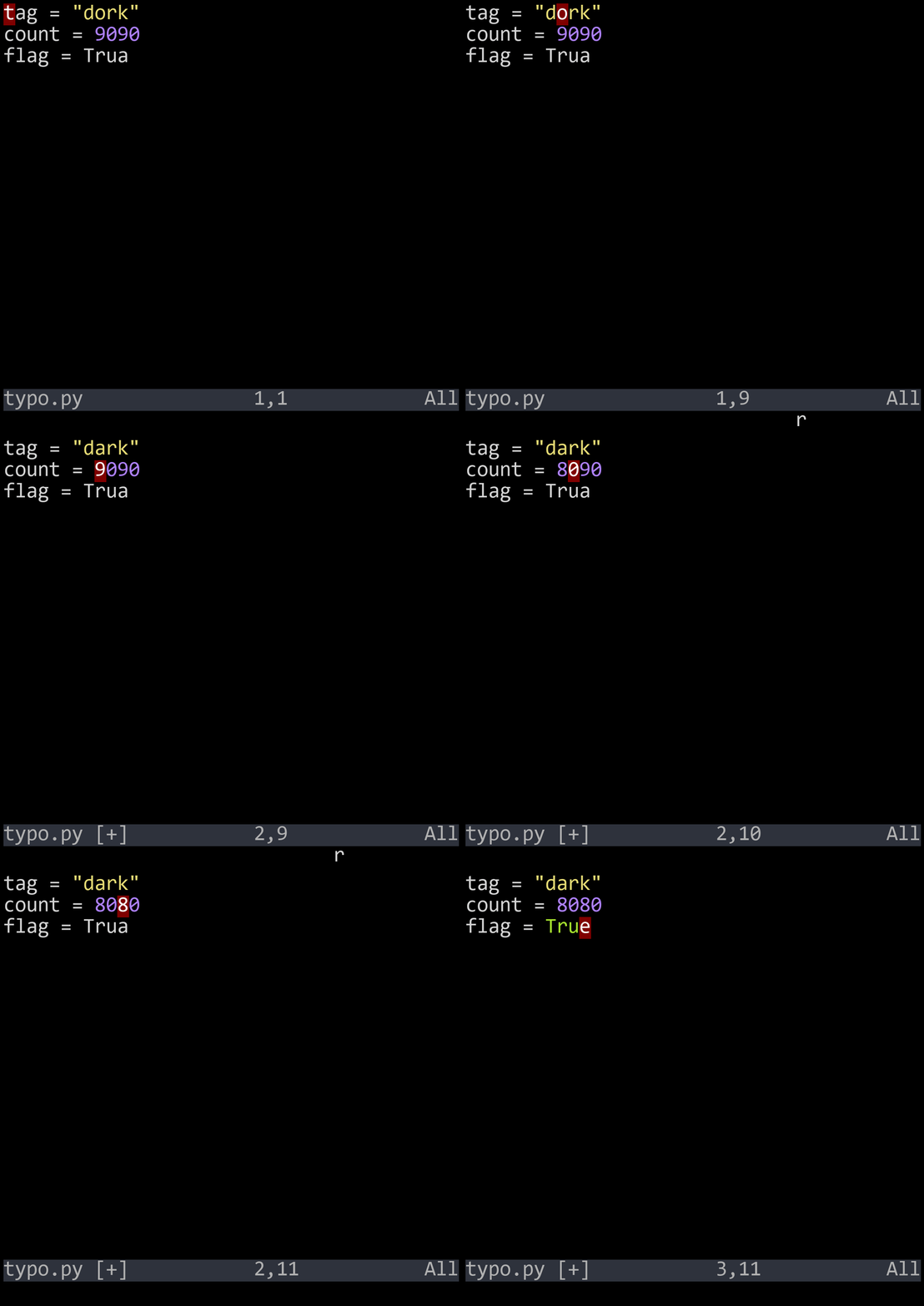
This is a micro-optimization that adds up. Need to change a comma to a semicolon? r;. Need to fix a capitalization? rG. One motion, one keystroke, done.
| Key | Action |
|---|---|
| a | Append after cursor |
| I | Insert at start of line |
| A | Append at end of line |
| o | Open new line below |
| O | Open new line above |
| w | Next word start |
| b | Previous word start |
| e | End of word |
| 0 | Start of line (column 0) |
| ^ | First non-whitespace |
| $ | End of line |
| gg | Top of file |
| G | Bottom of file |
| x | Delete character |
| dw | Delete word |
| dd | Delete line |
| D | Delete to end of line |
| cw | Change word |
| cc | Change entire line |
| C | Change to end of line |
| s | Substitute character |
| yy | Yank (copy) line |
| yw | Yank word |
| p | Put (paste) after |
| P | Put before |
| rX | Replace character with X |