Get in, type, save, and get out alive
Get in, type, save, and get out alive. After this chapter, you can use Vim without panicking.
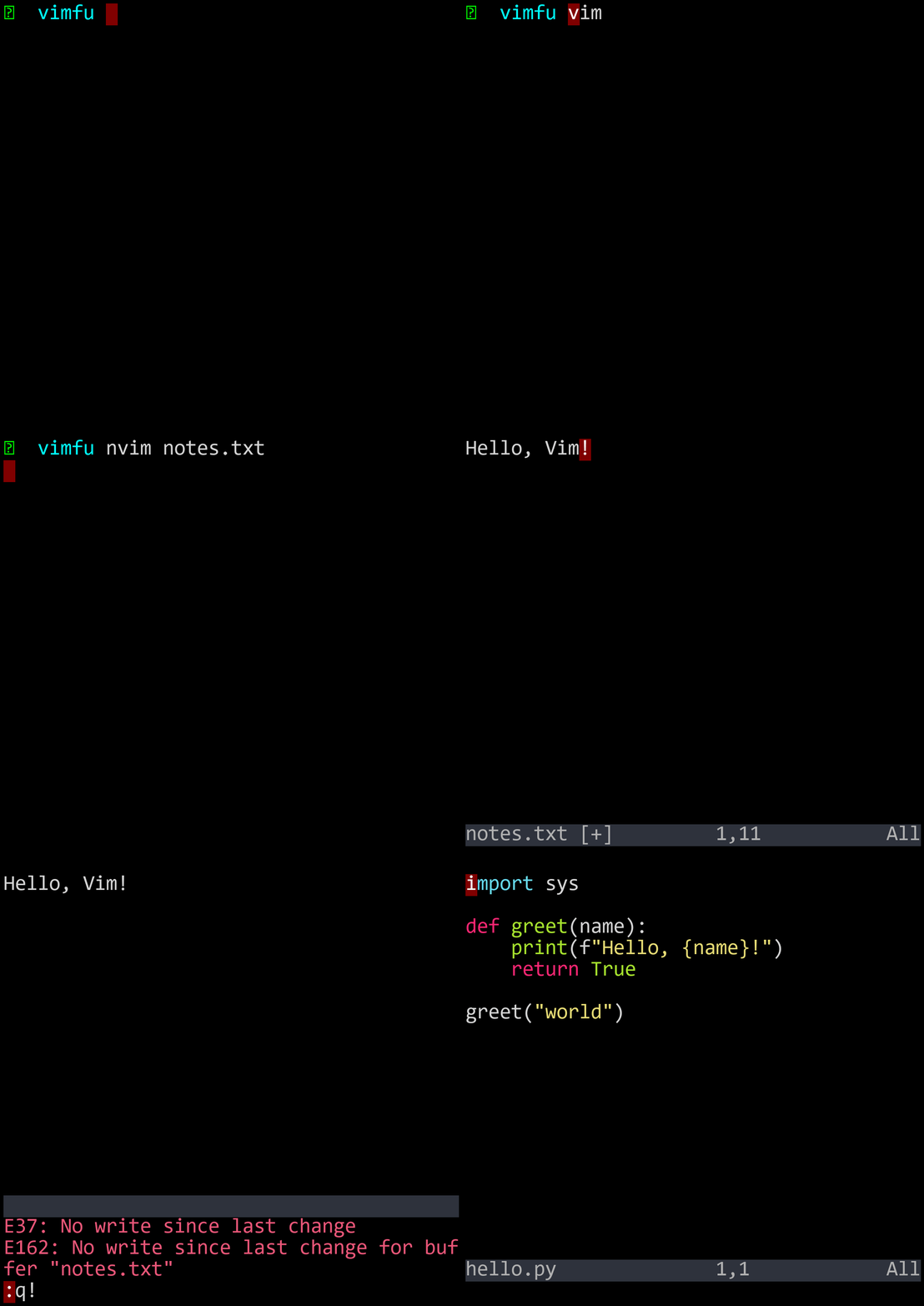
To open a file, type nvim followed by a filename at your terminal prompt:
If the file exists, you see its contents. If it doesn't exist, you get an empty buffer — Vim creates the file when you save.
You can also type just nvim with no filename to open an empty scratch buffer. Or use vim or even vi — on most systems, they all launch the same editor.
Press : to open the command line at the bottom of the screen, type w (for "write"), and press Enter. Your file is saved.
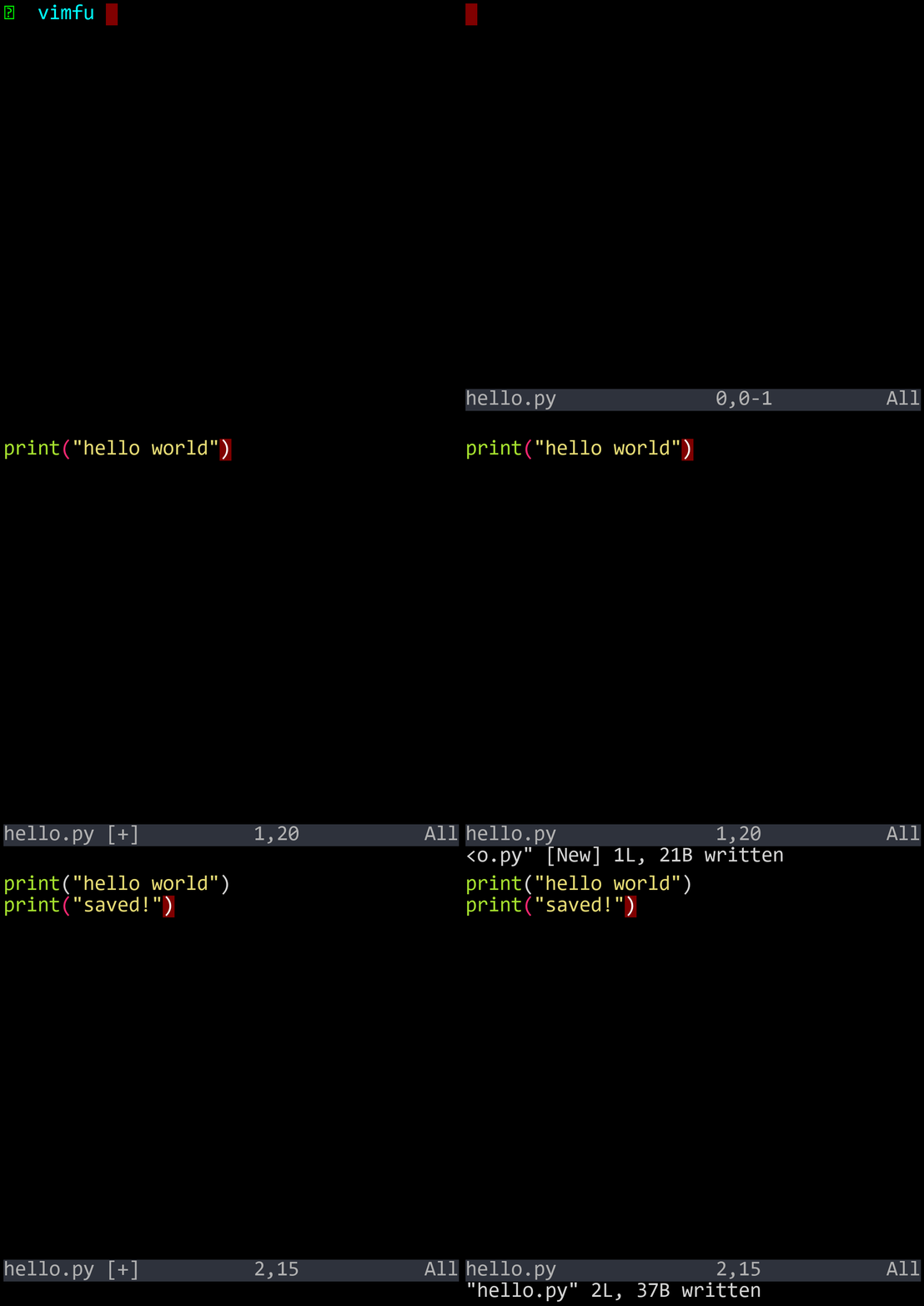
The most famous question in programming: "How do I quit Vim?" Press :, type q (for "quit"), press Enter.
If you have unsaved changes, Vim won't let you quit with :q. You have three options:
| Command | Action |
|---|---|
| :wq | Save and quit |
| :x | Save and quit (same thing, shorter) |
| ZZ | Save and quit (no colon needed) |
| :q! | Quit WITHOUT saving (discard changes) |
| ZQ | Quit without saving (no colon needed) |
Right now, you're in normal mode. Every key is a command. You can't type text — pressing j moves the cursor down instead of typing the letter 'j'. This is the part that surprises everyone.
To type text, press i to enter insert mode. The status bar at the bottom will show INSERT. Now keys type text, just like any other editor.
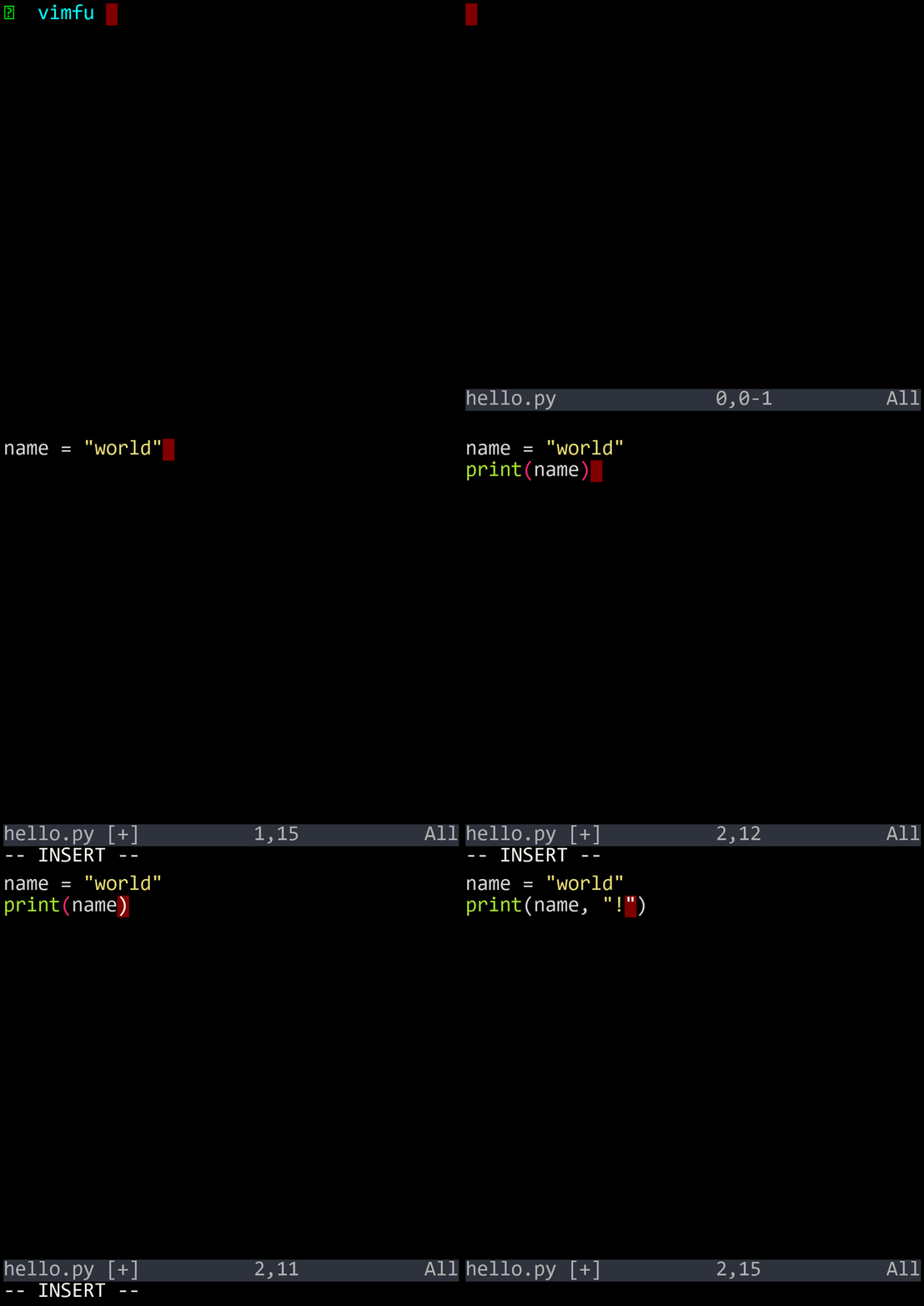
When you're done typing, press Esc to return to normal mode. The INSERT indicator disappears. You're back to command mode.
That's the fundamental rhythm of Vim editing: i to insert, type what you need, Esc to return. Get in, type, get out.
This is the single most important habit in Vim: after every edit, press Esc. After typing a line of code, Esc. After fixing a typo, Esc. After pasting text, Esc. Always return to normal mode.
Normal mode is your home base. It's called "normal" for a reason — it's the mode you should normally be in. Insert mode is a brief excursion: get in, type, get out.
New Vim users stay in insert mode too long. They type a paragraph, then try to navigate with arrow keys, then get confused when they can't use dd to delete a line. The fix is simple: build the Esc reflex now. It will save you from every Vim confusion.
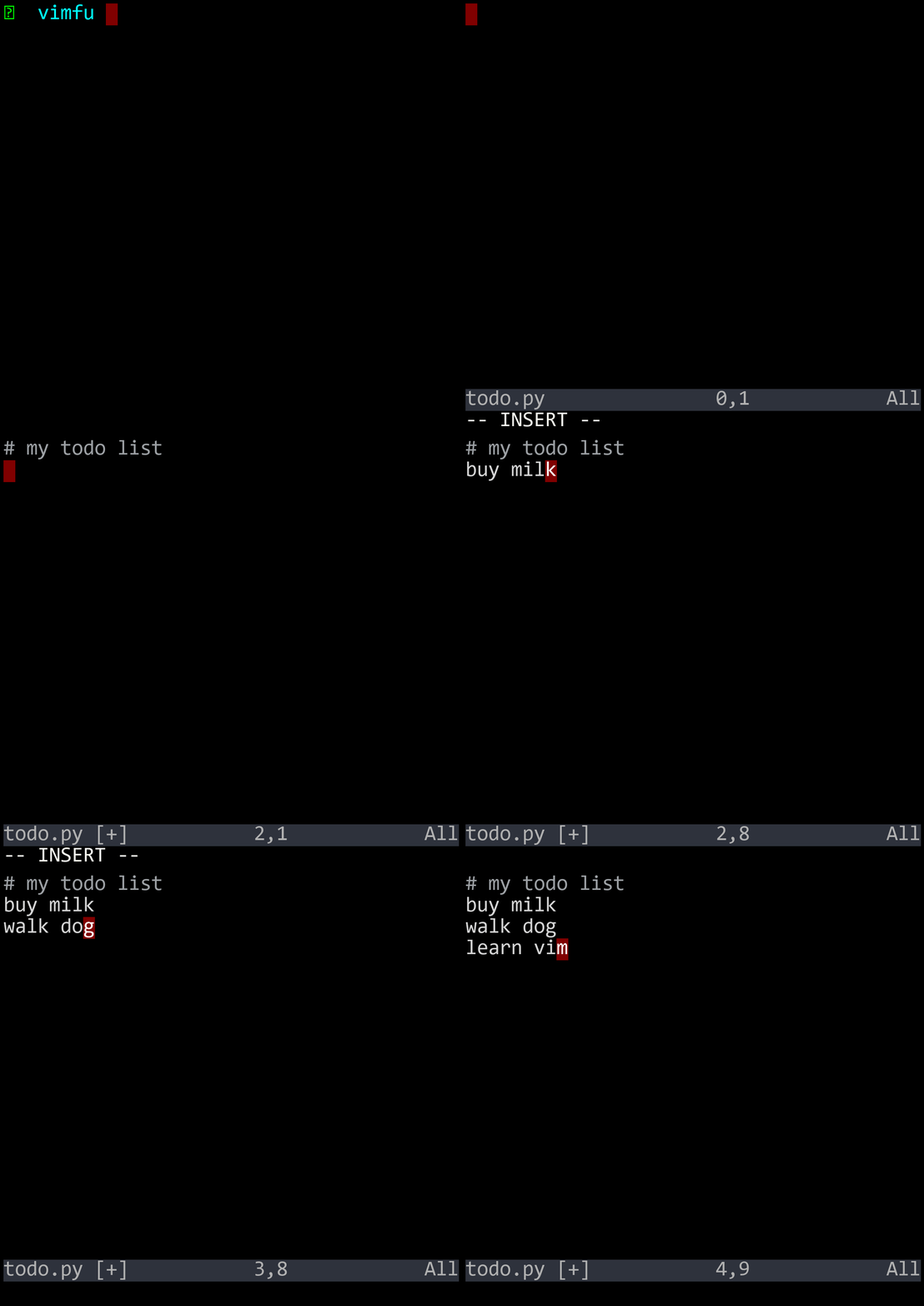
Vim is safe to experiment in. Made a mistake? Press u to undo. Keep pressing u to undo more. Vim supports multi-level undo — you can undo all the way back to the original file.
Went too far? Press Ctrl-R to redo — bring your changes back.
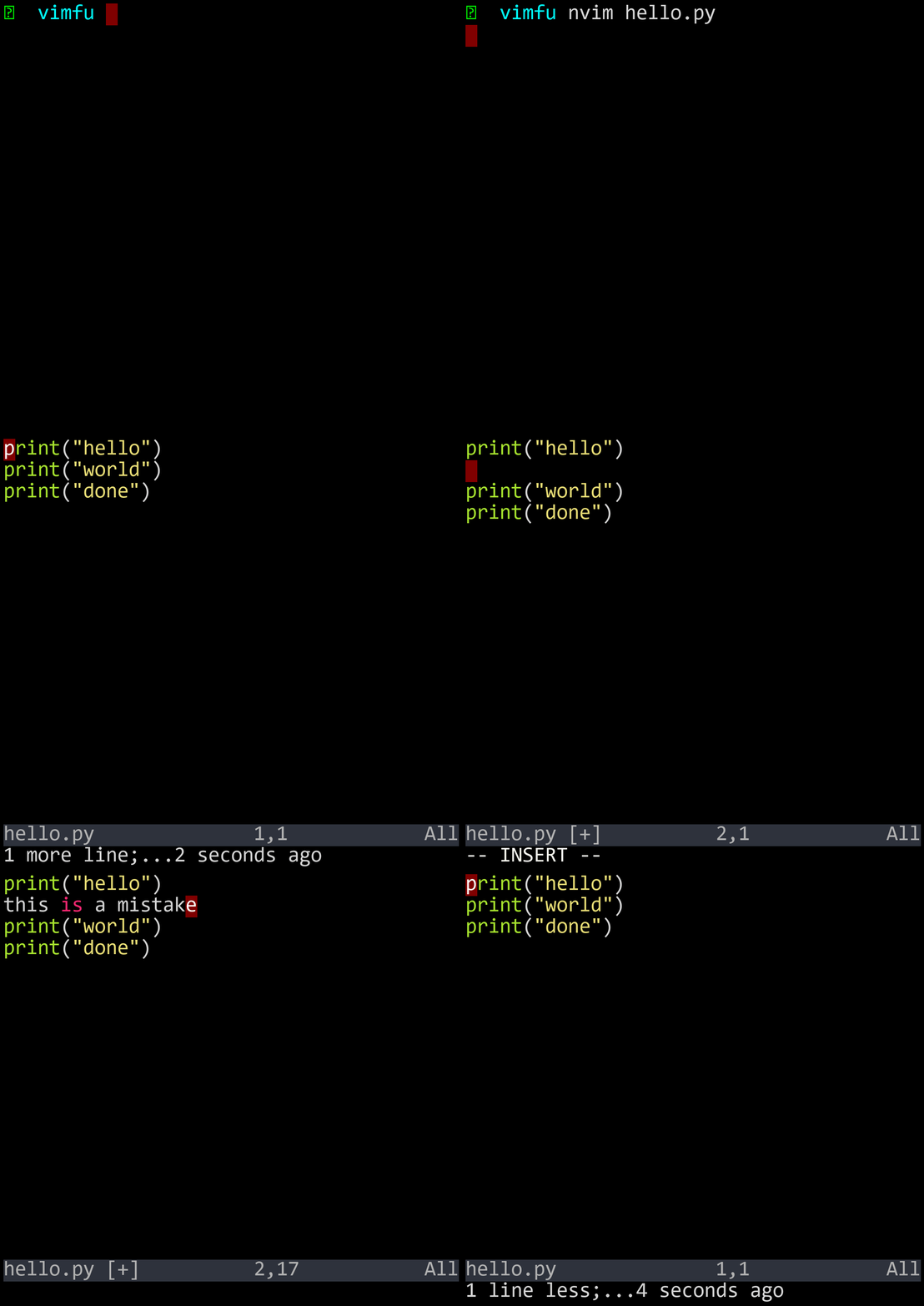
A "change" in Vim is everything between entering and leaving insert mode. If you press i, type three lines, then press Esc, a single u undoes all three lines. This is why the Escape habit matters — it creates natural undo checkpoints.
In normal mode, move the cursor with four keys right on the home row:
| Key | Direction | Mnemonic |
|---|---|---|
| h | Left | Leftmost key |
| j | Down | j hangs below the line |
| k | Up | k points up |
| l | Right | Rightmost key |
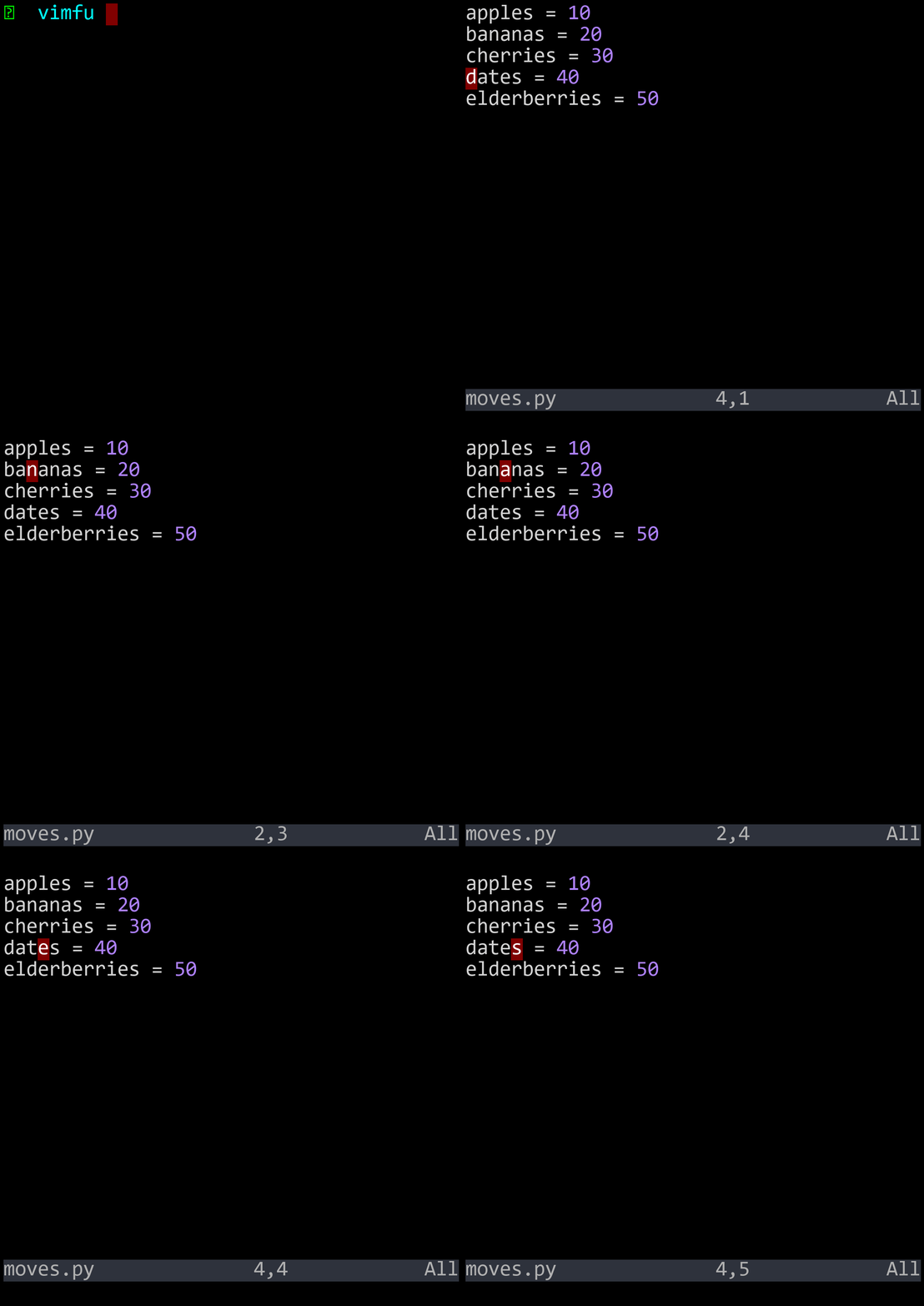
Yes, the arrow keys work too. But they defeat the purpose. The whole point of Vim is that your hands never leave the home row. Every time you reach for an arrow key, you lose a fraction of a second. Over thousands of edits per day, that adds up.
Why hjkl? On the ADM-3A terminal where vi was born in 1976, these keys had arrow symbols printed on them. It's a historical accident that turned into the most ergonomic cursor movement in computing.
| Key | Action |
|---|---|
| nvim file | Open a file in Neovim |
| i | Enter insert mode |
| Esc | Return to normal mode |
| :wEnter | Save (write) the file |
| :qEnter | Quit (if no unsaved changes) |
| :wqEnter | Save and quit |
| ZZ | Save and quit (shortcut) |
| :q!Enter | Quit without saving |
| ZQ | Quit without saving (shortcut) |
| u | Undo |
| Ctrl-R | Redo |
| h | Move left |
| j | Move down |
| k | Move up |
| l | Move right |